How to merge two photos into one couple photo
To make one couple photo from two separate pictures, upload one clear portrait of each person to the TryKiss AI couple photo maker, choose a shared setting, and generate a new portrait. The originals can come from different days or places. Each generation uses 5 credits.
Decide what you want the finished picture to show
Two selfies from different cities can become a split-screen image that shows both places, or a new portrait that shows the two of you together. For a shared profile photo or a card, a generated portrait gives both people one background and one pose. If the setting itself is part of the memory, such as each person holding up the same gift in a different city, keep those original details in a collage.
| Method | What you get | When to use it |
|---|---|---|
| Side-by-side collage | Both original pictures within one frame | A then-and-now post or a record of two real places |
| Manual cutout | One person composited into the other photo | A specific background you want to keep |
| AI couple portrait | A new picture of both people in a shared scene | A card, portrait, or keepsake when you only have separate photos |
Pick two portraits you can imagine in the same frame
Open both pictures on your phone at about the size they will appear in a message. Check whether you can still recognize each face and tell where the shoulders end. Start with two head-and-shoulders portraits at a similar angle. If one person took a wide-angle selfie from below and the other is standing far from the camera, replace the harder-to-read photo first.
- Look at the eyes. Pick photos where both eyes are visible and the light reaches the face.
- Look at the crop. Keep a little space around the head and leave both shoulders in if you can.
- Look for other faces. Crop out people in the background so each upload has one clear subject.
- Use photos of two adults who both agree to the generated portrait and how it will be shared.
Put the two people in one scene
Open the couple photo maker and keep Couple Photo selected. The style presets supply a setting, lighting, and pose. For a print or a profile picture, start with Studio portrait. For a casual keepsake, try Golden hour. The Holiday card style puts both people beside a decorated tree.
Upload both portraits
Put one solo photo in Person A and the other in Person B. Use the original files if you have them so faces are clear.
Choose a style
Pick one preset. For a card, decide where the greeting will sit and leave enough space around the couple when you crop the finished image.
Generate and review the picture
Check both faces at full size, then zoom out to check the crop you plan to use. Look at the hands and glasses if the pose includes them. Download the portrait when you are happy with it.
Two portraits, one shared setting
The two source portraits on the left were made separately, with the man outside a house and the woman in a kitchen. The new couple photo on the right uses both portraits as references and places them together beside the bicycle. Compare the faces, glasses, hair, and clothes across the pictures, then look at how both people fit into the same light and background.
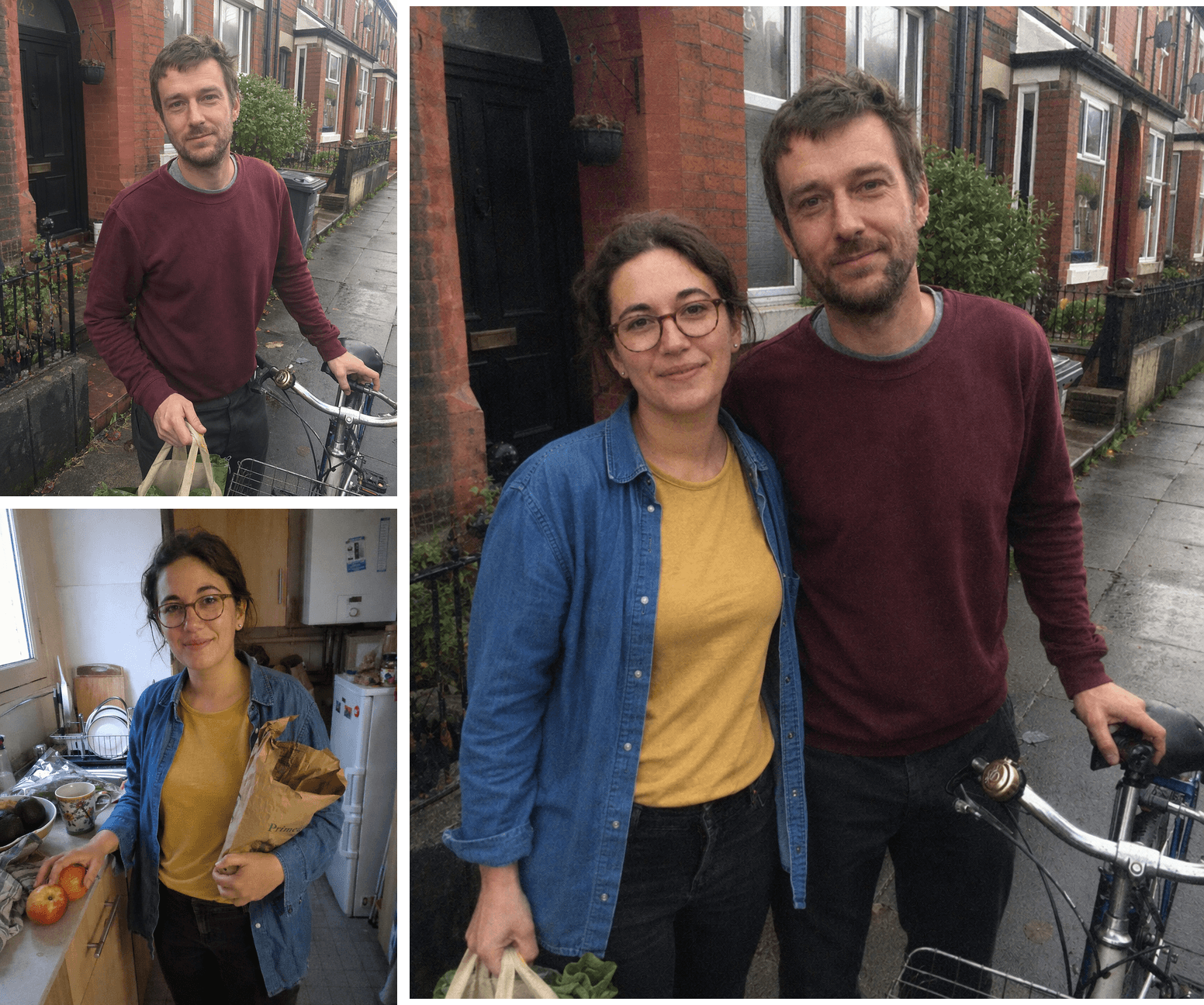
Separate portraits
Each face is clearly visible, with room around the head and shoulders.
A shared scene
The same two people stand together in an ordinary street setting.
Two synthetic source portraits at left and a new AI couple photo generated using both as references at right.
For more ways to frame and caption a card, see our Christmas couple photo ideas.
Change one thing if the first portrait looks off
Keep one variable fixed so you can tell what helped. If a face looks wrong, keep the scene and replace only that person’s source photo. If both faces look right but the styling feels too elaborate, keep the photos and try Studio portrait. If the photo works at full size and cuts off a face in a round avatar, test a wider crop before using more credits.