How to make your own couple kissing GIF
To make a couple kissing GIF, take two or three seconds from a video, crop around both faces, then export that segment as a looping GIF. If you only have photos, start with one portrait of each person in TryKiss AI, generate a short kiss video, and convert the downloaded MP4.
Start with a video or make one from two photos
A clip you already have works well if you can see both people throughout the kiss. If you only have separate portraits, follow the two-photo kiss tutorial, select Video in the studio, and download the result. Use photos of consenting adults and agree on where the result can be shared. A short Dinner Date Kiss clip is enough to find a few seconds for the loop.
Trim the MP4 and export a loop
Play the clip once and watch what happens when it jumps back to the beginning. A loop usually looks smoother when the two people are in similar positions at the beginning and end. If the video starts with a camera move or ends on a cut, pick a shorter span in the middle. When starting from a couple photo, leave room around both heads for movement, as in the reference image below.
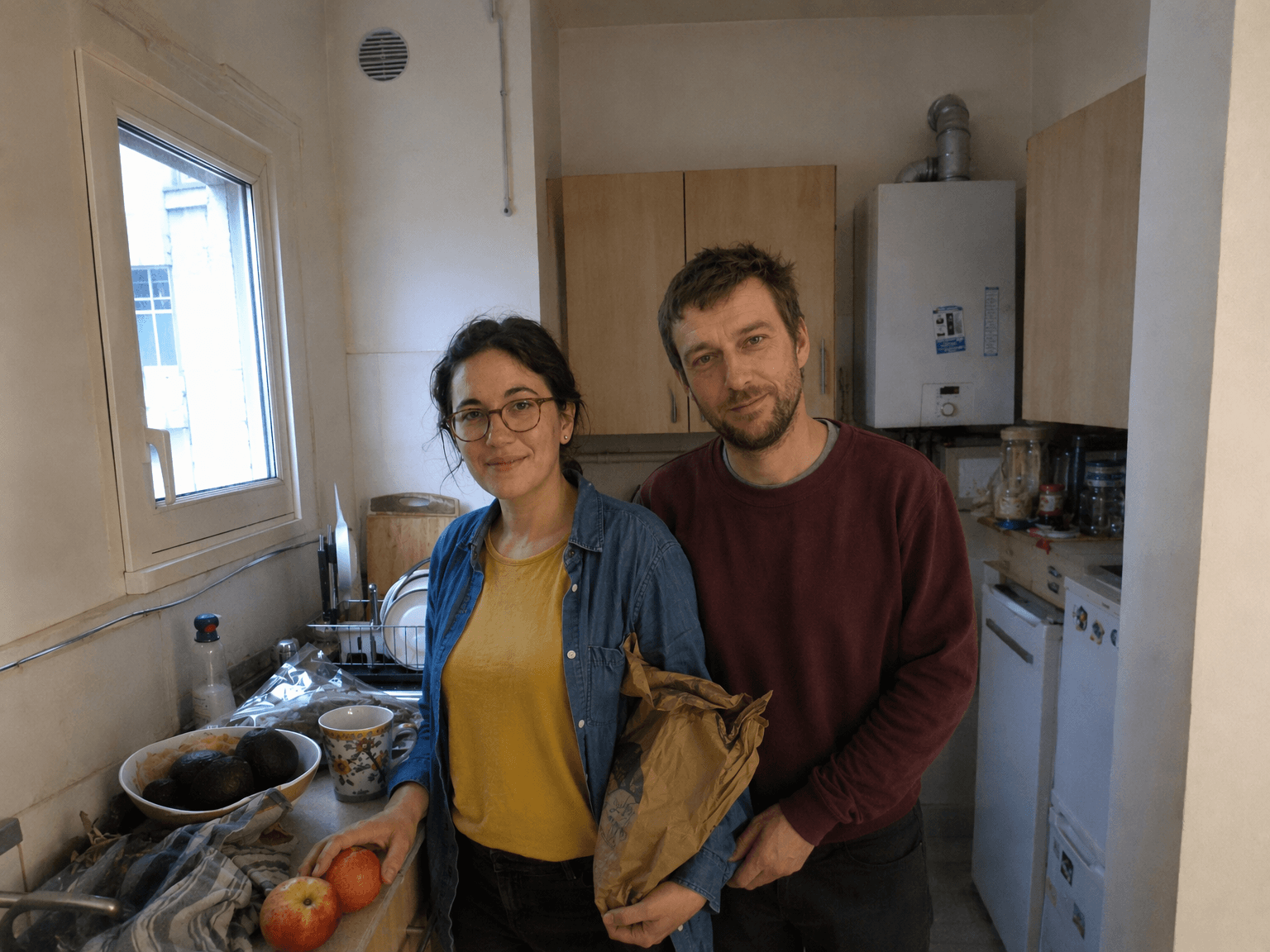
Leave space for movement
Keep both full heads inside the frame with room above and beside them.
Keep both faces visible
Clear eyes and unobstructed faces make the starting photo easier to work with.
AI-generated couple reference photo made from two separate synthetic portraits, with everyday lighting and phone-camera texture.
Pick a short segment
Mark a start time and an end time two or three seconds apart. Preview the jump between the last frame and the first. Move either cut by a few frames if a head or hand jumps.
Crop around both people
Keep both faces in frame at the moment they move closest together. If you use a square crop, check it at both ends of the loop before exporting.
Convert the segment to GIF
In the Ezgif video-to-GIF converter, enter your start and end times, choose a width and frame rate, then set the loop count to 0 for continuous playback. For private footage, use an editor that exports GIFs on your device so the clip stays local.
Open the saved GIF before sending it
Check that the saved file animates and that the faces are easy to see at message size. If your messaging app shows a still, try attaching the file directly or send the original MP4.
A real test of four GIF export settings
We exported the same TryKiss AI airport reunion clip four ways with the same FFmpeg palette and dithering settings. The first three exports start at the same frame and run for 2.4 seconds. The fourth uses twice as much of the clip. Open the 2.4-second airport kiss GIF to see the smallest version in motion.
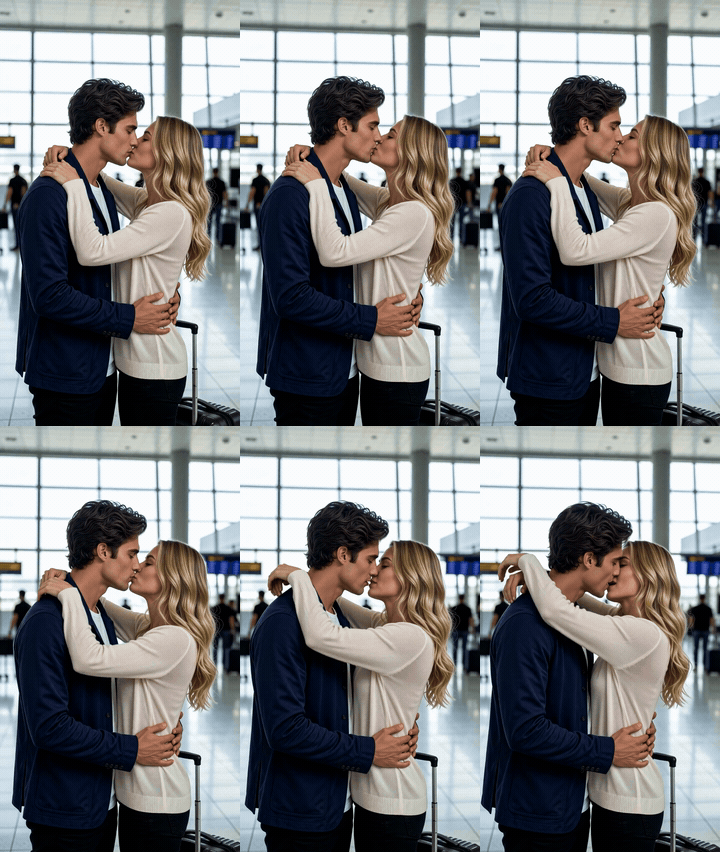
| Width and frame rate | Loop length | GIF file size |
|---|---|---|
| 240 px, 10 fps | 2.4 seconds | 1.37 MB |
| 320 px, 10 fps | 2.4 seconds | 2.32 MB |
| 240 px, 15 fps | 2.4 seconds | 1.82 MB |
| 240 px, 10 fps | 4.8 seconds | 2.89 MB |
File sizes use decimal megabytes. Background detail, motion, and encoder settings all affect the result. On this clip, shortening the loop saved more space than lowering the frame rate from 15 to 10 fps.
When to keep the video
A short GIF works for a silent reaction or a goodnight message. Keep the MP4 if you want the original audio, a longer scene, or a vertical video for a story or reel. If your GIF is still too large, cut the segment down first, then reduce the width. Keep the MP4 as your source so you can try a different crop later.