How to make an AI kissing video on your phone
You do not need to install anything to make an AI kissing video on your phone. TryKiss AI runs in Safari or Chrome: pick a photo of each person from your camera roll, choose a kiss scene, and a video with sound, up to 30 seconds long, downloads straight to your phone. Here is the whole process on a phone screen, plus tips for phone photos and for sharing the result.
What you need
Everything fits on the phone you are holding.
- An iPhone or Android phone with Safari, Chrome or any up-to-date browser.
- A clear photo of each person in your camera roll. Solo photos taken in different places are fine; so is one photo of the two of you.
- A free account. Signing in with Google takes one tap on most phones, and new accounts get 30 credits.
Step by step on a phone
This is what the generator looks like on a phone screen, from adding the photos to tapping Create.
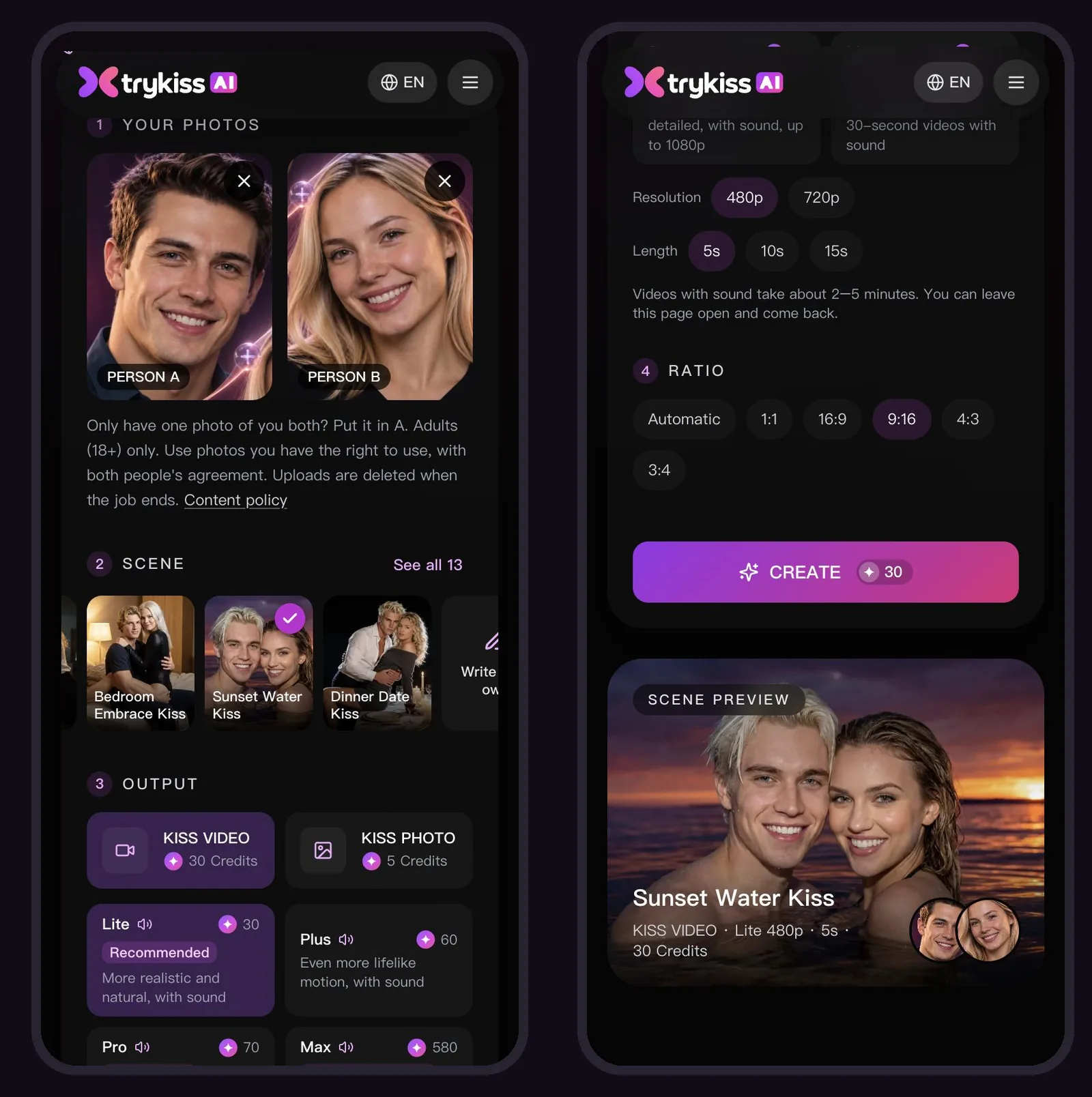
Photos, scene, output
Tap Person A and Person B to pick photos, tap a scene, then choose Kiss video.
Length, ratio, Create
Pick the length and the ratio, check the preview, then tap Create.
Screenshots of TryKiss AI in a phone-sized browser, taken on 8 November 2026. The two portraits are AI-generated sample people.
Open trykissai.com
Open the site in Safari or Chrome. If you will use it again, you can add it to your home screen so it opens from an icon like any other app.
Add the two photos
Tap Person A and choose a photo from your library, or take a new one with the camera. Do the same for Person B. Only have a photo of the two of you together? Put it in Person A.
Pick a kiss scene
Swipe through the scenes and tap one, or tap "See all 13" to see them in a grid. To describe your own scene, tap "Write your own".
Choose the video, length and ratio
Tap Kiss video, then pick the quality and a length of 5, 10, 15 or 30 seconds. The default, a 5-second Lite video at 480p, costs 30 credits. Under Ratio, pick 9:16 for a video that fills the phone screen, or leave it on Automatic.
Tap Create and wait a few minutes
Sign in with Google or your email when asked. A video with sound usually takes 2 to 5 minutes. You can switch to another app in the meantime; the finished video waits for you in your recent results when you come back.
Download the video
Tap Download on the finished video, then save it to your phone as described below.
Save the video to your phone
Downloads work a little differently on each phone.
- iPhone: Download opens the video in a new tab. Tap the Share button there, then Save Video, and it goes into your Photos.
- Android: Chrome saves the video to your Downloads folder. Open it from the Files app, or find it in Google Photos or your gallery app, which usually shows downloads too.
- Results stay in your account for 7 days, so you can download them again from your phone or your computer within that time.
Tips for photos taken on a phone
Phone cameras are more than good enough, and a few habits make the faces come out right. For more detail, see the photos that work best.
- Use the back camera or a selfie held at arm’s length. A selfie taken too close stretches the nose and chin.
- Turn off beauty filters and heavy portrait effects. The AI copies whatever face it sees.
- Stand facing a window in daylight. Even light on both sides of the face works better than a lamp from above.
- A screenshot from a video call works for long-distance couples if the face is large and sharp. Make the call full screen before you take it.
- Choose photos where the two faces are at a similar angle, so they match when they meet in the scene.
If something goes wrong
The usual phone hiccups have quick fixes.
- The screen locked while the video was being made: open the site again. The video keeps working on our side and shows up in your recent results.
- Download opened a page instead of saving: on an iPhone that is normal. Use the Share button on that page and choose Save Video.
- A face looks off: make a kiss photo for 5 credits with the same photos first, swap in a clearer photo, or see how to fix common photo problems.