AI kiss: how to make kissing videos that look natural
To make a realistic AI kiss video, start with clear photos of both people, choose a simple scene, and generate a short clip before spending credits on a longer version. Check whether the faces remain recognizable during the approach, the kiss, and the moment after. Natural-looking results depend on believable movement and consistent facial features as well as image sharpness.
What is an AI kiss, and how does it work?
An AI kiss is a generated image or video that depicts two people kissing, using photos as visual references. The people do not have to appear in the same original photograph. An AI kissing video generator creates a new scene and movement around their likenesses; the result is a synthetic moment, rather than a recording of something that happened.
- An AI kiss photo is one still image. It can be used as a keepsake or to check whether a scene suits the uploaded faces.
- An AI kiss video adds movement over time. The faces, head positions, hands, clothing, and background all need to remain believable as the pose changes.
- A kissing GIF is a short, looping image sequence made from a video. It has no audio and needs a clean transition between its last and first frames.
TryKiss AI prepares a new image from the source photos and then generates the video. That means there are two separate things to evaluate: the appearance of the people and the quality of the motion. For a shorter introduction, read what an AI kiss video is.
Choose photos that show who each person actually is
Start by opening each candidate photo at a comfortable viewing size. You should be able to recognize the eye shape, eyebrows, nose, mouth, and jaw without guessing through blur or shadow. A recent, ordinary portrait often gives you a clearer reference than a distant holiday picture or a heavily edited selfie. Choose similar levels of detail for both people; a sharp photo of one person cannot supply missing information about the other.
| Check | Useful starting point | What to replace |
|---|---|---|
| Face angle | Facing the camera or turned slightly, with both eyes visible | A strong side profile or a face looking sharply down |
| Light | Soft daylight or even indoor light across the face | A face lost in shadow or a bright patch covering facial detail |
| Sharpness | An original photo with readable eyes and mouth | A screenshot of a screenshot, motion blur, or a tiny face |
| Appearance | Natural skin texture and recognizable everyday features | Heavy smoothing, face reshaping, or an effect that changes the eyes |
| Obstructions | Hair and hands away from the eyes, nose, and mouth | Sunglasses, a mask, a phone, or hair covering half the face |
| People in frame | One person in each individual portrait, or exactly the intended couple | A group photo that makes the intended subjects ambiguous |
Crop unrelated people out, but leave the whole head, neck, and some shoulders. The two photos do not need identical backgrounds or outfits. If glasses are part of how someone normally looks, start with a clear photo showing them without strong glare. If the result changes the frames, compare another clear reference before removing an important part of their appearance. See the source photo checklist for more examples.
Give both faces room in the composition
A close crop can look romantic as a still picture and become difficult to read once the heads move. Begin with both heads, necks, and shoulders visible. A waist-up or chest-up composition leaves room for a small turn toward the other person without immediately pushing a forehead or chin out of frame. Keep the background simple enough that the eye stays on the couple.
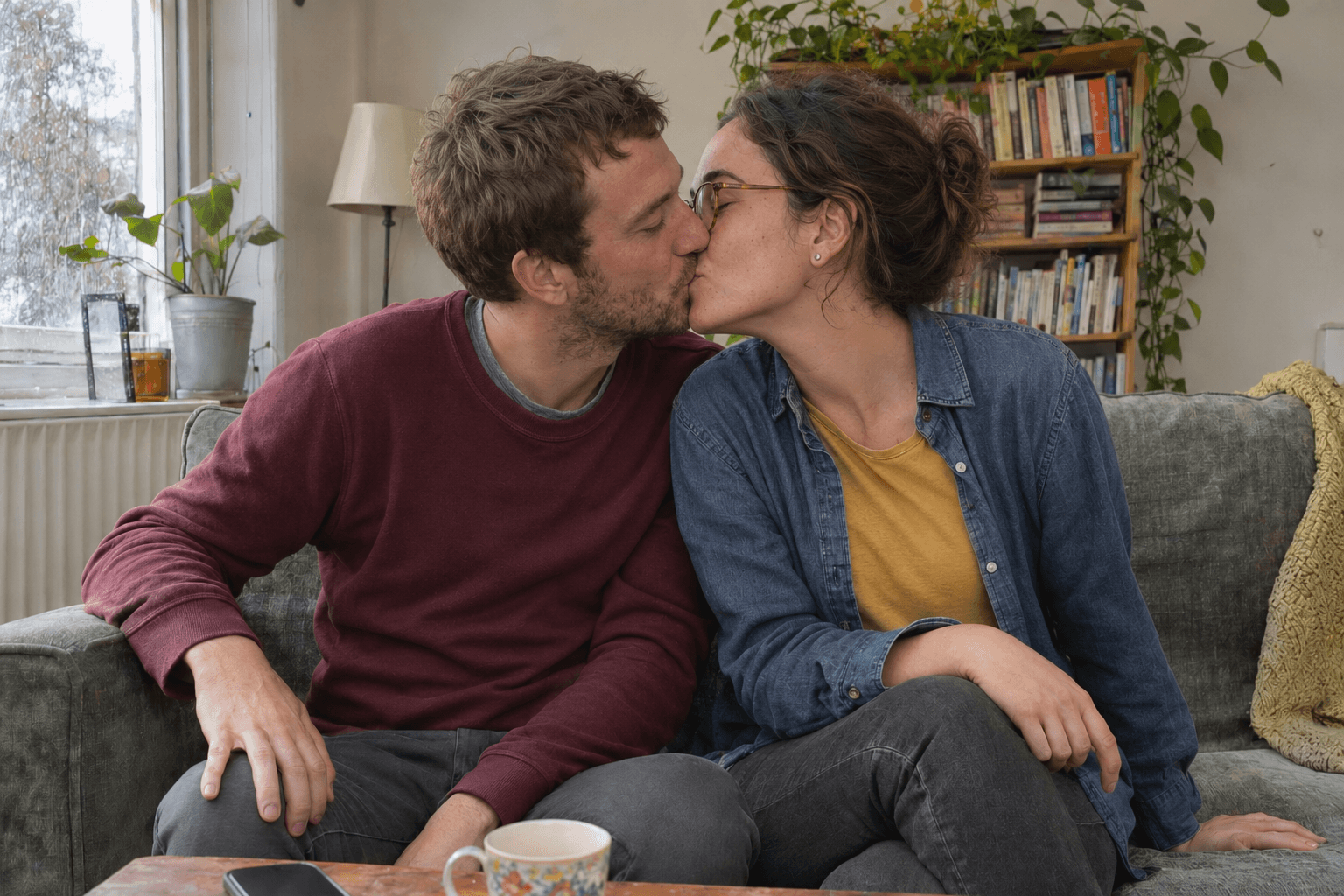
Natural contact
The lips meet while the noses and facial contours remain distinct.
Room to move
The frame includes the heads and shoulders with space around them.
Everyday detail
Ordinary clothes, relaxed hands, and a familiar room give the scene context.
AI-generated illustration of a gentle kiss, using the reference couple from our blog. It illustrates framing and facial contact; it is not a frame from a TryKiss AI video.
Realism also includes small differences between people: uneven hair, glasses, stubble, clothing folds, and a slightly asymmetric smile. Asking for a flawless beauty portrait may move the result away from the familiar faces you wanted to preserve. Describe the setting and pose clearly, then judge the likeness against the source photos.
Pick a scene for its movement, not just its cover image
Watch the scene preview before choosing it. Notice whether the people stay seated, stand close together, change height, turn their heads, or move their hands near a face. For a first attempt, choose a pose you can understand at a glance. An elaborate embrace can be an appealing creative choice, but it gives you more moving parts to inspect afterward.
- Look at the starting distance. Two people already near each other need a smaller approach than people on opposite sides of a wide scene.
- Check face visibility. A dramatic side angle may hide the very features that make the video feel personal.
- Watch the hands. A hand crossing a mouth or glasses can make it harder to judge whether the face stays consistent.
- Match the mood to your purpose. An everyday indoor scene fits a personal message; a stylized setting may suit an intentionally cinematic keepsake.
TryKiss AI currently makes Dinner Date Kiss, Lap Embrace, and Bed Cuddle Kiss available without a previous credit-pack purchase; generation still uses credits. Other scenes and “Write your own” unlock after the first completed credit-pack purchase. Preview the available kiss scenes before committing to one.
How to make AI kissing videos from photos, step by step
Open the AI kissing video generator in your browser. The following workflow separates source selection, a short first attempt, and final review so you can identify what needs changing. You can follow it on a phone or computer; no separate app installation is needed.
Upload the intended people
Add one individual portrait to each photo slot. If you already have a clear photo of both people together, upload that single couple photo instead. Check the selected thumbnails before continuing, especially when choosing from a phone library with several similar pictures.
Choose and preview a kiss scene
Select a scene whose pose and movement fit the result you want. Keep the source photos and scene unchanged for your first attempt so you have a useful baseline. If you use an unlocked custom description, start with one location and one clear pose.
Optionally check the faces with Kiss Photo
A separate Kiss Photo costs 5 credits. Use it when you are unsure about the portraits or composition, and compare each face with its original. This check is optional. It does not reserve an exact starting frame for a later video, which generates its own image from the source photos.
Select Kiss Video and a short first run
Choose Lite, 480p, and 5 seconds for the lowest-credit video option, currently 20 credits. With a preset scene, choose a suitable aspect ratio if needed. Read the displayed cost before generating; changing the tier, resolution, or duration can change it considerably.
Generate and follow the task progress
Sign in when prompted and start the generation. Let the current task complete before starting another attempt. If the connection drops or you leave the page, check the in-progress task or generation history when you return, rather than assuming you must pay for a new run.
Watch the whole clip, then inspect the difficult moments
Play it once at normal speed. Then pause around the head turn, contact, and separation. Compare both people with their source photos and listen to the audio. Decide whether the problem is likeness, movement, framing, or the sound before changing anything.
Download the version you want to keep
Use Download and open the saved file to confirm that it plays. Keep that original before trimming, adding a caption, or making a GIF. If you want a longer or higher-resolution version, treat it as another generation with its own cost and a potentially different result.
Why a good kiss photo can still produce an awkward video
A still image only has to work at one moment. A video has to keep the same person recognizable as the face turns, part of it becomes hidden, and the people separate again. A convincing first frame therefore does not tell you whether a jawline will change midway through the clip or whether glasses will retain their shape.
- If the likeness is already wrong in the photo, investigate the source portrait, the pose, and the scene description first.
- If the video starts well but a face changes during a turn, investigate the movement and how much of the face becomes hidden.
- If the people look correct but the framing is uncomfortable, adjust the composition or ratio before spending more on resolution.
On TryKiss AI, a separately generated Kiss Photo is not automatically reused as the video’s exact first frame. The video run prepares another image from the original uploads. Treat the photo as a diagnostic check of the inputs and idea. Even with unchanged settings, another run may produce a different composition or expression.
Choose duration, resolution, and quality separately
Duration controls how much time the action has. Resolution controls the output dimensions. The quality tier selects a different generation option. These are separate decisions: a longer clip is not automatically more believable, and a sharper image can make a facial mistake more visible. Start with the option that answers your immediate question, such as whether both people remain recognizable during one kiss.
| Tier | Available duration and resolution | Lowest-cost option |
|---|---|---|
| Lite | 5 to 15 seconds; 480p, 720p | 20 credits: 5 seconds at 480p |
| Plus | 5 to 15 seconds; 480p, 720p | 60 credits: 5 seconds at 480p |
| Pro | 5 to 15 seconds; 480p, 720p, 1080p | 70 credits: 5 seconds at 480p |
| Max | 5 to 30 seconds; 480p, 720p, 1080p | 580 credits: 30 seconds at 480p |
All four currently offered video tiers include sound. A 5-second clip is a manageable first test; 10 or 15 seconds gives more room for an approach and a pause. Max goes up to 30 seconds. Choose a longer version because you want that pacing, and inspect the entire result. The tier names are not a promise that a particular pair of photos will work better.
Frame the video for where you will watch it
Choose the viewing format before the final generation when the ratio control is available. A wide scene cropped vertically afterward can remove one person’s face or an arm. Keep both faces away from the edges and leave some space above the heads. If you plan to add a caption, reserve a quiet area that will not cover the kiss.
| Format | Useful for | Composition to check |
|---|---|---|
| 9:16 portrait | Full-screen viewing on a phone | Keep the couple close enough to fit side by side without cutting off a head |
| 16:9 landscape | A wider scene or a video viewed on a computer | Let the setting support the couple without making their faces too small |
| 1:1 square | A compact square presentation | Leave breathing room around both heads and any visible hands |
| Auto | Letting the generation choose the framing | Inspect the actual output before planning a tight crop |
The standard studio also offers 4:3 and 3:4 where its ratio selector is shown. With a preset video scene, you can select the ratio. The current “Write your own” video flow uses Auto; a description of framing is guidance, not an exact size control. Crop a copy of the downloaded video if you need to adjust it afterward.
Work out the credit budget before retrying
New TryKiss AI accounts receive 30 trial credits. One optional 5-credit photo check plus one 20-credit short video uses 25 credits, leaving 5. That remaining balance does not cover another default video. Outputs from accounts that have not purchased a credit pack carry a watermark. Plan the first run around what you want to learn, and check the current credit packs if you want room for further attempts.
| Plan | Calculation | Total credits |
|---|---|---|
| One short video without a separate photo check | 1 × Lite 480p, 5 seconds (20) | 20 |
| One photo check and one short video | 5 + 20 | 25 |
| Two photo checks and two short videos | 2 × 5 + 2 × 20 | 50 |
| One photo check and a 10-second Lite 480p video | 5 + 35 | 40 |
| One short 480p attempt, then a new short 720p attempt | 20 + 75 | 95 |
The video price already includes the image preparation used for that run. A separate Kiss Photo is an additional purchase, not a mandatory surcharge. These examples count generation attempts, not guaranteed keeper videos. Changing the settings generates a new result; it does not simply upgrade the existing file. For the broader pricing explanation, see AI kiss credit costs.
Write an AI kiss prompt with concrete visual instructions
Describe the people by reference to the uploaded photos, then specify the pose, framing, location, and light. “Make it realistic” alone leaves those choices open. A concise scene description is easier to revise because you can identify which instruction is responsible for the look you want. Start with one setting instead of combining several moods and camera styles.
The two adults from the reference photos + a clear pose + readable framing + one location + specific light + the facial details to preserve.
Everyday room, relaxed pose
The two adults from the uploaded photos sit close together on a simple sofa, turned slightly toward each other just before a gentle kiss. Both faces are visible. Eye-level, waist-up framing with space above both heads. Soft window light, ordinary clothes, natural skin texture, and a relaxed expression. Preserve their recognizable facial features and glasses.
Quiet outdoor moment
The two adults from the reference photos stand close together on a quiet residential path, sharing a small smile before a kiss. Both heads and shoulders are fully in frame. Overcast daylight, everyday clothing, a simple background, and natural proportions. Keep their individual face shapes, hairlines, and distinctive features recognizable.
A closer portrait with room around the heads
A natural portrait of the two adults in the uploaded photos standing near a window, gently angled toward one another, their faces close but separate before a kiss. Chest-up composition, whole heads visible, soft side light with detail on both faces. Subtle expressions and realistic skin texture. Keep hands below the faces and the background quiet.
These are scene descriptions for an unlocked “Write your own” workflow. The current studio does not expose a separate motion-timeline editor, so these descriptions do not guarantee an exact second-by-second action. Preset scenes include their own motion instructions. For more prompt styles and tools with separate motion controls, see the AI kissing prompts guide.
What makes the kiss itself look natural?
Look for a movement that has a readable beginning, contact, and ending. In a convincing short clip, the head and shoulders move together, the approach is gradual enough to follow, and the faces remain distinct as the people draw apart. The three moments below give you a way to review the action.
| Moment | What to look for | A visible problem |
|---|---|---|
| The approach | A small, continuous lean or head turn that fits the starting pose | A head suddenly jumps position while the shoulders stay fixed |
| The kiss | Believable contact with consistent jawlines and no facial features passing through each other | Mouths smear together, a nose changes shape, or a face appears flattened |
| The release | A natural separation or calm closing pose with the same recognizable faces | Glasses disappear, facial proportions change, or the ending snaps to another pose |
Small head movements are a useful starting point because they are easier to inspect. A scene with spins, a large lift, a sweeping camera move, and a kiss asks you to evaluate several things at once. If the motion feels busy, try a calmer preset before adding more descriptive instructions or increasing the resolution.
Review the result in three passes
Watch the first pass at normal speed, at approximately the size where the recipient will see it. Does the clip feel like a continuous moment, or does something immediately pull your attention away from the couple? On the second pass, pause at the head turn and separation to compare facial details. On the third, play the sound and look at the edges of the frame.
- Identity: compare the eye spacing, nose, jaw, hairline, glasses, and facial hair with the originals. Check both people separately.
- Continuity: look for changes in glasses, earrings, clothing, or fingers as one person moves in front of the other.
- Contact: inspect the mouth and nose area without judging only one flattering still frame.
- Background: check whether a doorframe, sofa edge, or window bends or pulses noticeably during the movement.
- Sound: listen for distracting or unexpected audio before sending the clip. Use an external editor if you need to mute or replace it.
- Ending: make sure the final moment works for your intended use. A good standalone ending may still need trimming to become a smooth loop.
A minor background detail may be acceptable in a private message. A face that no longer resembles your partner is a stronger reason to try again. Decide what matters for this video before spending more credits chasing every small imperfection.
Fix distorted faces, awkward movement, and blurry results
Use the visible symptom to choose your next change. The suggestions below are troubleshooting starting points, not a diagnosis of the model’s internal behavior. Write down the first point where the result stops looking right. If the problem is present before anyone moves, a motion change alone is unlikely to answer it.
| What you see | What to check | Change to try first |
|---|---|---|
| A person looks wrong from the start | Source clarity, filters, and how much of the face is visible | Replace only that person’s portrait with a clearer, more frontal photo |
| The face changes during a head turn | How far the head turns and whether the face becomes hidden | Choose a calmer scene with a smaller turn |
| Lips or noses merge at contact | Starting angle, tight framing, and overlapping faces | Try a scene with a more readable pose and more room around the heads |
| Glasses bend or disappear | Strong reflections in the source and hands crossing the frames | Use a clearer glasses reference or a pose that keeps hands away |
| A hand gains or loses fingers | Whether the scene requires a complicated grip or touches a face | Choose a simpler hand position or a different preset |
| Both people appear soft throughout | Original photo detail and the selected output resolution | Replace blurry inputs first; then consider resolution if the faces are already correct |
| One person is cut off | Aspect ratio and how tightly the scene is framed | Use a wider composition or a suitable ratio where available |
| The motion rushes or changes direction abruptly | How many actions must fit into the clip | Choose a simpler scene; consider extra duration only if you want more time for the same action |
| The picture is acceptable but the sound is distracting | The downloaded file with sound enabled | Mute or edit the audio in a copy instead of regenerating a satisfactory picture |
| The task appears stuck after a connection problem | In-progress status and generation history | Resume checking the existing task before starting another paid attempt |
If only one person is wrong, keep the other source photo unchanged. If both people look right and only the movement is awkward, keep the photos while testing a different scene. This makes the next result easier to interpret. For problems limited to still images, use the AI kiss photo troubleshooting guide.
An example of a controlled retry
Imagine that the first clip starts with recognizable faces, but one person’s glasses warp during the turn. A useful next attempt keeps the same photos, duration, and resolution while selecting a scene with a smaller head turn. If you also replace both photos and change the tier, it becomes difficult to tell which change helped. This is a hypothetical planning example, not a reported product test or a success-rate claim.
- Attempt A: record the source filenames, scene, tier, resolution, duration, and credit cost. Note exactly where the glasses change.
- Attempt B: change the scene while keeping the other choices stable. Compare the glasses at the beginning, contact, and ending.
- If the same issue remains: try a clearer source photo with less glare on the glasses, then compare again.
- If the result is satisfactory: save it before deciding whether a longer or sharper new generation is worth another attempt.
Generation is variable, so one improved result does not prove that a single change will always solve the problem. The value of keeping notes is practical: you avoid repeatedly paying for the same unexamined combination and can return to the input choices that produced a keeper.
When a longer AI kiss video is worth making
A longer clip makes sense when you want time for a shared look, the approach, the kiss, and a quiet moment afterward. It also gives you more footage to review. Before choosing a 30-second Max video, decide what that extra time should contribute to the final message. If you only want a brief reaction, a short clip may already serve the purpose.
Existing example: Sunset Water Kiss
An existing TryKiss AI sample made with Max at 720p for 30 seconds, using this scene’s AI-generated sample couple. These are different characters from the illustration above. Watch the approach, contact, and ending; this single example is not a performance benchmark.
Explore Sunset Water KissA successful short attempt is useful evidence that the photos and scene can work together, but it does not guarantee the next generation will match. Max is a separate video option, not a way to append seconds to a completed Lite clip. The 30-second AI kiss guide includes an existing product sample and the longer-video workflow.
A practical first attempt
Choose two clear portraits, preview a simple available scene, and make one 5-second Lite video at 480p for 20 credits. Add an optional 5-credit photo check if you are uncertain about the faces or composition. Review the approach, contact, and release; save the clip if it works for your purpose. If it does not, name one specific problem and change the input most closely related to it.
Open TryKiss AI with your photos ready, or use the five-step quick-start guide if you want a shorter set of instructions beside the generator.
Keep a simple acceptance log for a difficult pair
When a face repeatedly drifts, write down the visible defect and change one controllable input. This is a repeatable review method, not a model benchmark. It lets you decide whether another attempt is justified.
| Attempt record | What to write | Next decision |
|---|---|---|
| Inputs and settings | Portrait A/B filenames, scene, tier, duration, resolution, credits | Keep these fixed except for the single variable under test |
| Identity | Which face changes and at what point | Replace the weaker portrait if the error is present from the start |
| Contact | Lips meet / stop short / faces merge | Try a simpler kiss scene if contact repeatedly fails |
| Motion and sound | Unwanted turn, hands crossing face, distracting audio | Judge the original MP4 before editing or sharing |
| Outcome | Keep / revise / stop, plus credits spent | Stop when the preset budget is reached or the same defect persists |
The source-photo checklist helps you replace the weakest input. The credit guide distinguishes technical failure refunds from completed clips you do not want to keep.